Process Studio
Process Studio is Hyphen's design layer for people who own a process.
It is a catalog of governed cases already built by Hyphen, grouped by department. You pick the case that matches your work, change its content, connections, and people, run it, or hand it to a developer or an assistant. When no case fits, you describe the work in plain words and Hyphen builds, checks, and lists a case for your organization.
You never edit steps, tools, or the order of work. That is what makes every case provable.
How every case runs
Every case uses the beats it needs out of five, in this order:
- Reconcile. Deterministic matching clears what is known and isolates the exceptions worth a person's time.
- Investigate. A bounded agent reasons over each exception with declared tools only.
- Approve. A person reviews the exact action, its policy, and its expiry before it runs.
- Act. The change carries an idempotency key and returns a receipt.
- Prove. The record keeps the decision, the effect, and the evidence together.
Automatic by default, a person by exception, proven end to end.
The screens
The catalog
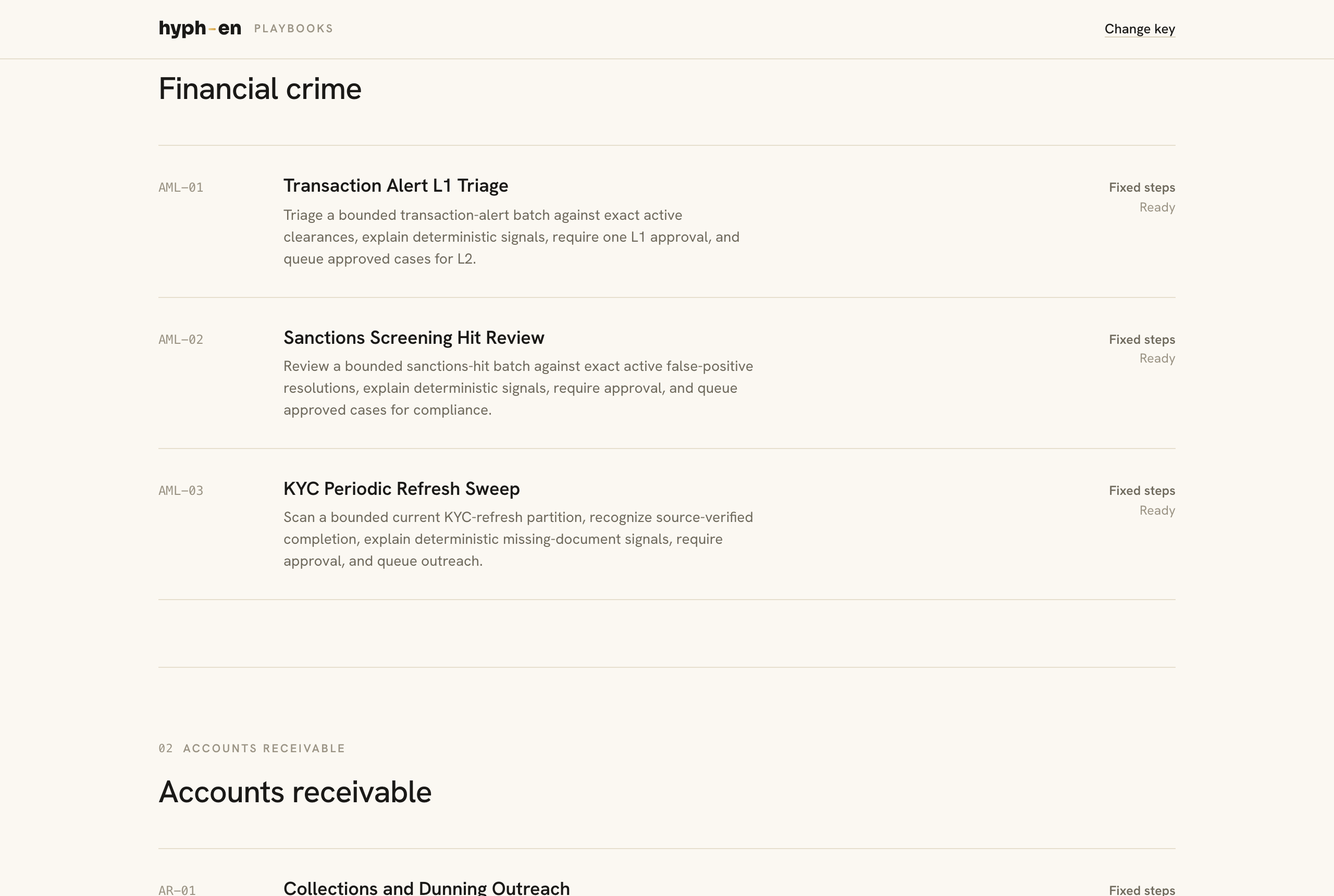
Cases grouped by department. Each row shows the code, the title, what the case closes in one sentence, whether it uses an agent or fixed steps, and its readiness:
| Label | Meaning |
|---|---|
| Ready | Runs on Hyphen defaults with no external setup |
| Needs one connection | One outside system must be connected before a live run. You can still open the case and make it yours |
| Needs a feature enabled | Hyphen enables a runtime feature for your organization before a live run. Until then a run stops with a clear message |
Cases your organization described carry a Yours tag and behave like every other case.
The full list is on the Catalog reference.
The case
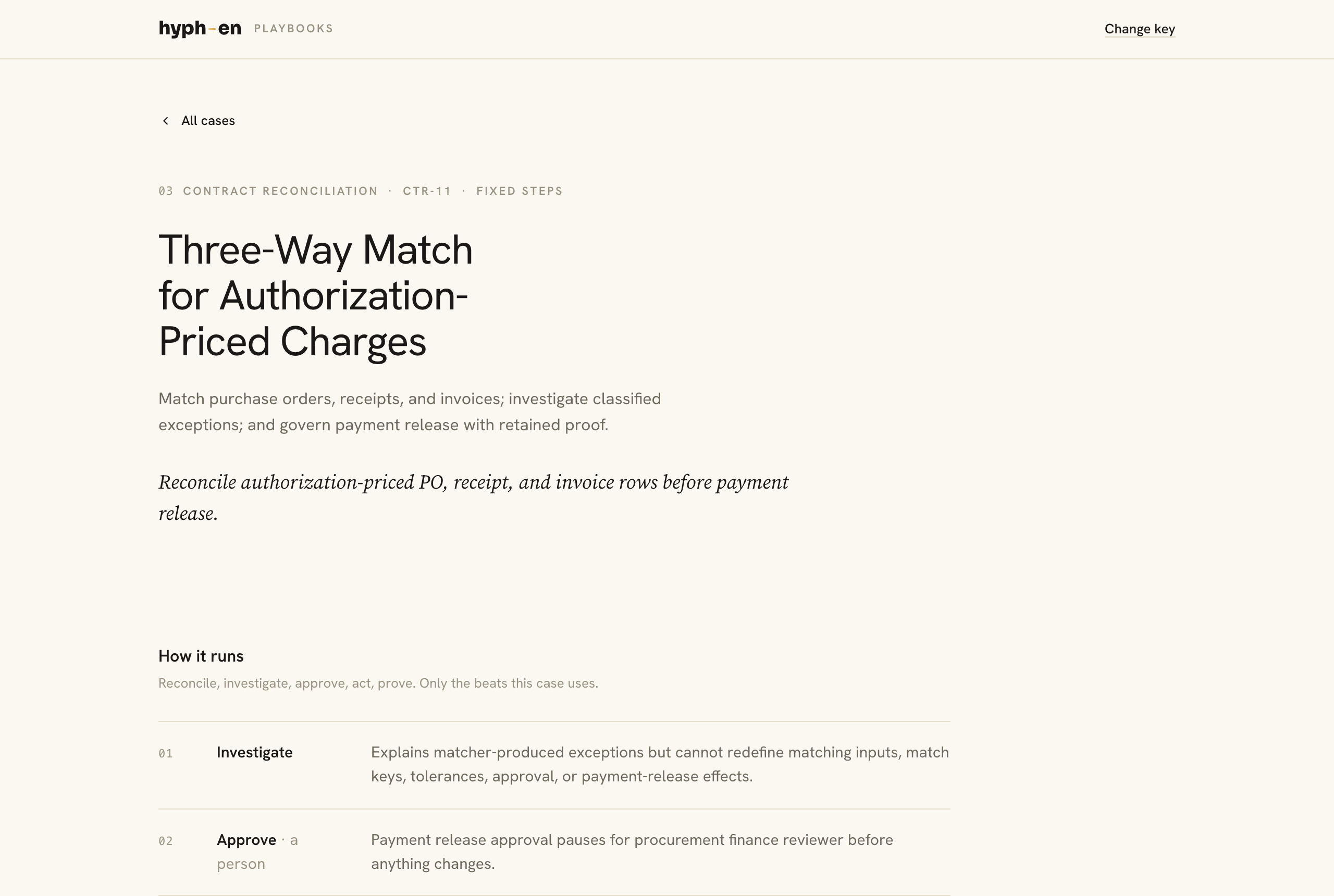
One screen per case:
- How it runs. The beats this case uses. A beat marked "a person" is where someone on your team decides.
- Where a person is in the loop. A bound approval ties the decision to the exact action, its policy, and an expiry. An agent case also says where the agent hands off what it cannot decide. A fixed-steps case says that people decide only at the approval.
- Make it yours. Three groups and only these three: content (thresholds, messages, templates), connections (the outside systems the case reaches, or the Hyphen default), and people (who approves, who receives hand-offs).
Where connections come from. A connection is chosen, not created, on this screen. The drop-down lists what your organization already has, grouped so you can tell them apart: forms, workflows, tables, actions, connected accounts, and settings, plus anything provided with the case. Each option says how it got there: registered through the API on a date, built from a sentence, published by another case, or connected through a provider. A developer adds new ones through the API, and they appear the next time the screen opens. When nothing fits, the Hyphen default runs the case with no outside setup.
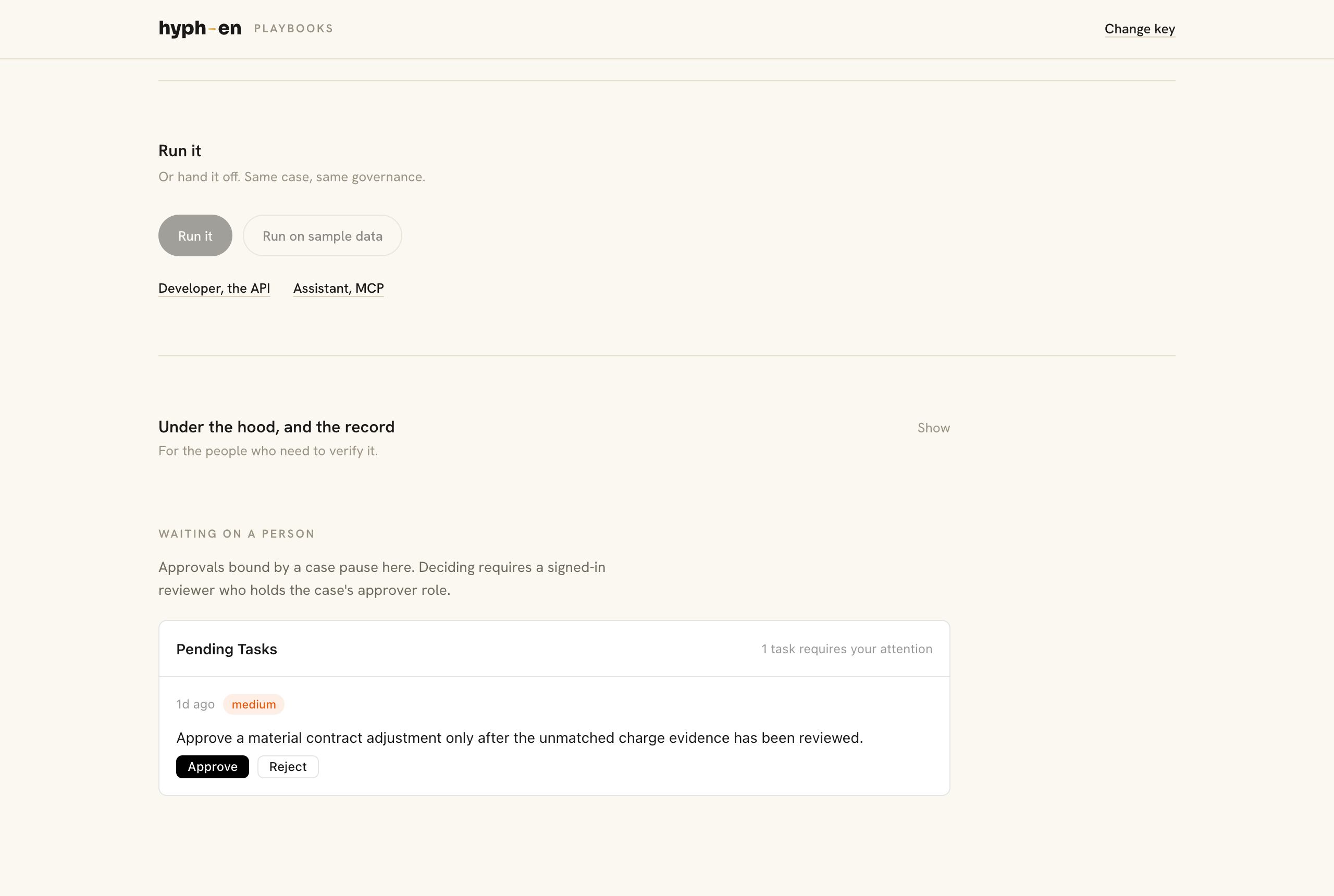
- Run it. Run on sample data first, then run with your own inputs.
- Under the hood. Read only, for the people who need to verify it: the flow as a diagram or a list, and the record of a run.
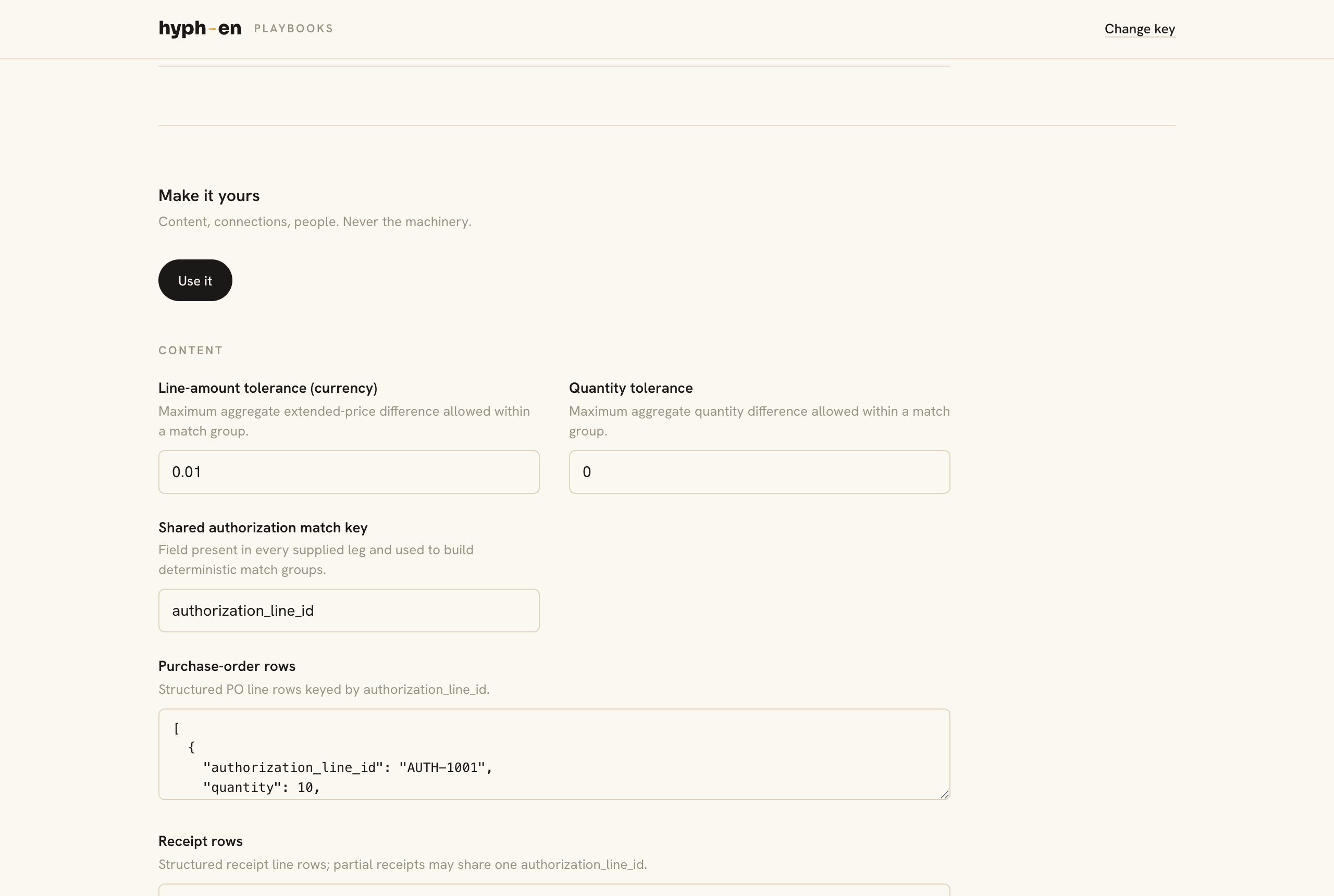
Use it
Pressing Use it prepares your organization's copy of the case. Nothing runs. If the case needs a connection, the run button waits until that connection is made. A connection is made by your organization, never by Hyphen.
Run it
A run ends in one of three states:
| State | Meaning |
|---|---|
| Run finished | Every step completed and the record is written |
| Paused for a person | An approval or a form is waiting. The run continues when that person decides |
| Run failed | The message says which step and why |
When a run pauses for an approval, the named person sees it in their task list and decides there; a rejected approval ends the run. When it pauses for a form, Fill it in opens the form on the case screen and the case continues on submit.
The record
See the record shows recorded steps, decisions, and receipts in order, including who made a human decision and when. It is written as the work runs.
Three doors
One case, configured once, run from any of three places. Same governance, same record.
| Door | How |
|---|---|
| This screen | Run it, or run on sample data |
| Developer, the API | The case screen shows the call for your configured case: POST /process-studio/processes/{processId}/execute with { "input": { ... } }. Approvals still pause for the people you named |
| Assistant, MCP | The case screen shows the recipe an assistant uses to start this vetted case through the MCP server. The assistant picks the case. It cannot declare tools or change the machinery |
Describe your own
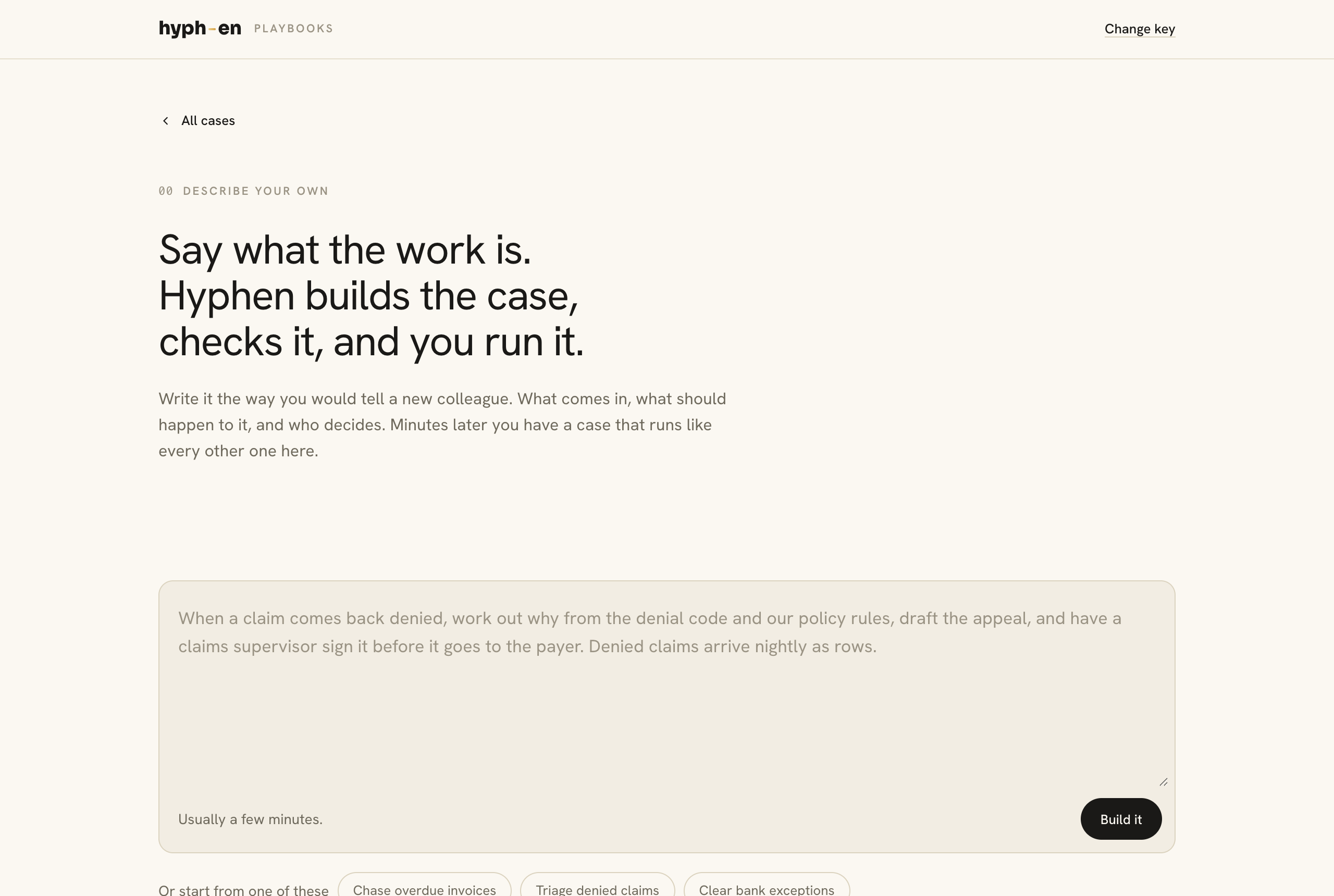
When no case fits, Describe your own on the catalog opens one composer. Write the work the way you would tell a new colleague: what comes in, what should happen to it, and who decides. Three starters show the shape. You can add a good outcome, the department, what data arrives, a short name, and sample rows as JSON; anything already said in the words counts.
Sending a description needs a signed-in person, so the case is yours and the record says who asked for it. If you are not signed in, the screen says so before you type and Build it opens sign-in with a one-time code; your words stay put and are sent once you are in. Reviewers and approvers are registered by the account holder; see People.
Build it starts the request. The request page shows three named steps:
- Drafting the case. From your words: the beats, where a person decides, the content you can change, the connections it needs, and a sample it can run.
- Checking it. Every action that reaches outside must pause for a named person. Every hand-off must have somewhere to go. Nothing the case uses may live outside it. A sample runs on a separate engine. A draft that fails any check comes back to you with the reason.
- Listed. In your catalog, marked Yours.
One of three outcomes:
- Listed. Open it. It works like every other case.
- Returned with notes. A check did not pass. The notes say what and why in plain words. Edit your words and press Build it again, or withdraw.
- Waiting for your admin. Only when your organization's policy holds cases for its own admin to list. The admin has a deadline; if nobody decides, the request comes back to you with a note.
Nobody at Hyphen is in that loop unless your organization invites them. Described cases take data as rows; a description that asks for documents to be read comes back with a note.
The hosted page and the component
The hosted page is https://<gateway>/process-studio/v5.html. It asks for a publishable key and opens the catalog. ?case=<key> deep-links to one case. The page follows the browser's theme by default; the Theme control in the header switches between auto, light, and dark and remembers the choice, and ?theme=light or ?theme=dark sets it for a link.
The same experience embeds in your own product as a Web Component:
<hyphen-process-studio-v5 target-org-id="org_…"></hyphen-process-studio-v5>
Attributes and events are on the SDK components page.
Advanced: API-only authoring
Tenants that build from their own backend and do not want a screen can create a process from a prompt in one call:
POST /process-studio/processes/create-from-prompt
It creates or reuses a project, creates the process, drafts a workflow or agent from the prompt, and publishes by default. Use the lower-level process-studio routes only when you need explicit control over the intermediate steps. The route list is in the API reference.